
 Home
Home  Apps
Apps  Games
Games  Windows
  Terms of Service
  Cookies & Privacy Policy
  About us
Aqara Home

 4.3
4.3 500,000+ Downloads
6.1.1 Version

Information
- Category: House & Home
- Price: free
- Age Rating: Everyone
- Available on: /
- Developer: Shenzhen Aqara Software Service Co., Ltd.
- Updated on: Jun 24, 2026
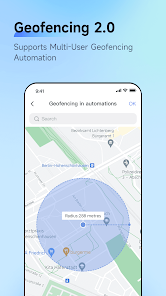
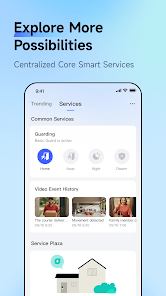
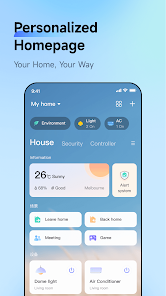
The Aqara Home app is your central hub for managing and controlling Aqara smart home devices. With an intuitive interface, it allows users to easily monitor and automate their home environment, enhancing comfort and security. From lighting and temperature control to security cameras and sensors, the app provides seamless integration and real-time notifications, empowering you to create a personalized smart home experience tailored to your lifestyle. Enjoy convenience and peace of mind at your fingertips.
Features & Highlights
Real Experience Using Aqara Home
Application Scenarios
Using the Aqara Home app has transformed how I manage my daily routines. For instance, each morning, I wake up to a gentle light that gradually brightens, thanks to my customized “Good Morning” scene. It makes waking up feel less jarring and more natural. Additionally, when I leave for work, I simply tap the “Leaving Home” button in the app, which triggers a series of actions: my security cameras activate, the lights turn off, and the thermostat adjusts to save energy while I’m away. These simple yet effective automations have made my life more convenient and worry-free.
User Experience
The user interface of the Aqara Home app is designed with simplicity in mind. When I first opened the app, I was greeted by a clean and organized layout, making it easy to navigate through different devices and settings. The performance is impressive; the app responds quickly to commands, and I never experienced any lag or crashes during my usage. Setting up devices was a smooth process; I simply followed the on-screen prompts, and within minutes, I had my smart home up and running. Overall, my feelings toward the app are overwhelmingly positive. It has not only simplified managing my home but has also added a touch of fun to my daily routines.
Pricing
The Aqara Home app is free to download, which is a significant advantage for anyone looking to dip their toes into the world of smart home technology without committing to any initial costs. However, keep in mind that while the app itself is free, many of the advanced features require Aqara hardware, which varies in price. The investment in devices is worthwhile, especially considering the convenience and energy savings they bring.
Updates & Support
Aqara consistently rolls out updates to enhance app performance and introduce new features, which is reassuring for users like me who value staying up to date with technology. Customer support is readily accessible through the app, offering useful resources and quick responses to inquiries. I had a minor issue with device connectivity once, and the support team was prompt and helpful, guiding me through the troubleshooting process until my devices were functioning perfectly again.
Security & Privacy Review
As an American user, I have particular concerns about security and privacy when using smart home apps like Aqara Home. First and foremost, I downloaded the app from official sources, ensuring it’s free from malicious software. During registration, I was required to provide basic personal data, including my email and location, which is standard practice for these types of applications. However, I appreciate that Aqara has a transparent privacy policy detailing how my data is used and protected.
Regarding ads and tracking behavior, I was relieved to discover that the app doesn’t bombard me with intrusive advertisements. It appears to focus on functionality rather than monetization through ads, which creates a more enjoyable user experience. Overall, I feel secure using the Aqara Home app, knowing that my data is handled with care and that my privacy is a priority for the developers.
Pros 
-
 Experience seamless control
 - Manage devices remotely
- User-friendly interface
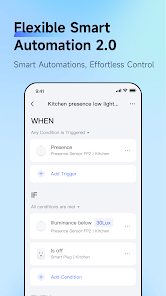
- Customize automation settings
- Receive real-time alerts
Cons 
-
 Limited compatibility issues
 - User interface can be confusing
- Frequent connectivity problems
- Lack of advanced automation
Get Installation Details  Google Play
  App Store
Google Play App Store User Reviews
(14K Reviews) Joshua Reinhart2026/01/09
Whenever I open the app, it will ask me multiple times to give it permission to access my phone's storage. I have no reason to allow that, and saying no once should be sufficient. Also, connecting to locks via Bluetooth is difficult. Usually takes a few times, and for some reason requires access to your location? Aqara needs to ask for less permissions, and ask only once.
- Cameron C2025/11/30
I use this for tempature/humitity sensors. They work great, but its very difficult to see trends over time. The graphs "auto adjust" scale is too jumpy. The "full" scale is too extreme. There needs to be a third option to "set" the scale. That way, you can choose it and then scroll through and see the data trends without the graph jumping around all crazy or being blown out to basically a straight line. Please update!
- Jon Musselwhite (Flipping Binary)2025/11/24
I don't like having to create a cloud account to access a local device, especially when the only way the device can reach the cloud is because the app successfully made a direct connection to the device via Bluetooth. Hopefully I can work around that and use the G410 doorbell camera fully locally, but we'll see. IMHO, cloud services should always be an optional add-on that enhances the devices capabilities, but should only be required in extremely limited cases (I haven't found any yet).
- W. L.2025/10/17
Can't automate off of power monitoring plugs still? it's been years since I put in feature requests.. but yay we're getting " AI " - I've LITERALLY spent $3k+ on this brand and if I don't see new automations options and better form factor hardware I'm ripping it out and buying something else. 1. automate trigger or condition on power monitoring (ie washer ON > runs > stops > make a light blink, alarm etc until mini button presses) 2. new PLUG shape that allows TWO plugs in same outlet like KASA
- Kevin Dement2025/10/08
I don't know how else to get a response from Aqara but post here. I got a camera hub and the wizard to set it up does not allow for qr code scanning. And when I try to get support, their chat bot is either offline, or only speaking Chinese. I've been doing home automation for a while now, and I've never used such a sloppy, bug filled app.
Review Source: Google Play store public user reviews.
FAQ
Can I control Aqara devices remotely using the app?
Yes, you can control your Aqara devices remotely as long as your smartphone has an internet connection and your devices are connected to the Aqara Hub. This feature allows you to monitor and manage your smart home from anywhere, providing convenience and peace of mind.
Can I create scenes in the Aqara Home app?
Yes, you can create scenes in the Aqara Home app. Scenes allow you to group multiple device actions together to execute with a single command. To create a scene, go to the "Scenes" section, select the devices you want to include, and configure their settings. You can activate these scenes whenever needed.
How do I connect my Aqara devices to the Aqara Home app?
To connect your Aqara devices, first, ensure that your smartphone is connected to a 2.4GHz Wi-Fi network. Open the Aqara Home app, go to the "Add Device" section, and follow the on-screen instructions to pair your devices. Make sure to have your devices in pairing mode during this process for successful connection.
How do I reset my Aqara device?
To reset your Aqara device, locate the reset button on the device itself. Typically, you will need to press and hold this button for a specific duration (usually around 5-10 seconds) until the device indicates it has been reset. Consult the device's manual for detailed instructions on the reset process.
How do I set up automation in the Aqara Home app?
To set up automation, open the Aqara Home app and navigate to the "Automation" section. You can create new automations by selecting triggers (like motion detection or time schedules) and actions (like turning on lights or sending notifications). Follow the prompts to customize your automation according to your preferences.
How to use Aqara Home
Can I use the Aqara Home app without creating an account?
No, you need to create an account to use the Aqara Home app and access its full features.
Do I need to activate my Aqara devices in the app?
Yes, you need to activate your Aqara devices in the app by adding them through the "Add Device" feature and following the on-screen instructions.
How can I check my account settings in the Aqara Home app?
You can check your account settings by opening the app, tapping on "Profile" at the bottom, and selecting "Account Settings" for your information.
How can I contact customer service for the Aqara Home app?
You can contact customer service through the Aqara Home app by navigating to "Settings" and selecting "Customer Service" for assistance. Alternatively, visit the Aqara website for support options.
How do I delete my Aqara Home app account?
To delete your account, go to "Settings," select "Account," and choose the option to delete your account. Follow the prompts to confirm.
What's New
- [Fix]Resolved known issues.
Similar Apps














You May Like

AI Remodel - Interior Design
Dmytro Bubela
4.5
Universal Tv Remote-Cast to TV
One Music Player
4.1
House Design Plan 3D App
Wallet Passes Alliance
4.5

Home Assistant
Home Assistant
4.6

Palmstreet: Shop & Sell LIVE
Plant Story
4.7

Foreclosure Home Search
Heavy Hammer
4.0

This Old House
This Old House
3.8

Rinnai Central
Rinnai America Corporation
1.4

Paint my House: Exterior Color
Try the Colors s.r.o.
4.3

Neighborbrite Landscape Design
Neighborbrite Inc.

HonySmart
Dawnwin Techonology
1.9

Authenticator Secure 2FA OTP
Duong Van Luong
4.3