 Home
Home  Apps
Apps  Games
Games  Windows
  Terms of Service
  Cookies & Privacy Policy
  About us
Schoox Classic

 3.9
3.9 500,000+ Downloads
11.9.1 Version
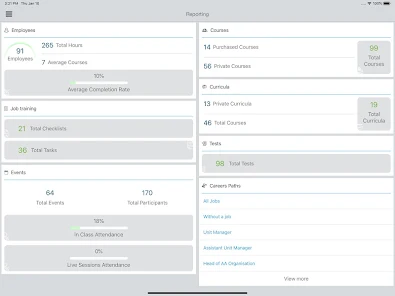
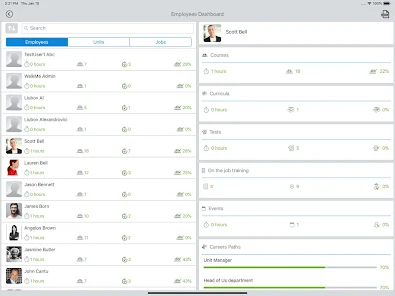
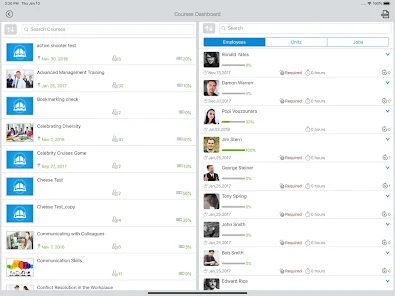
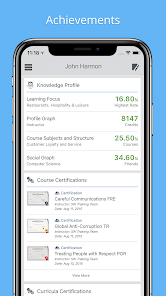
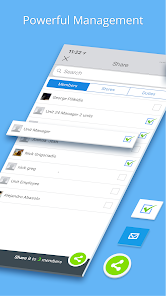
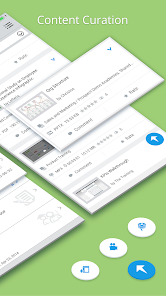
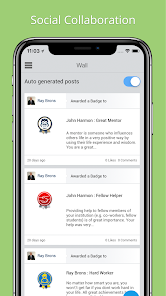
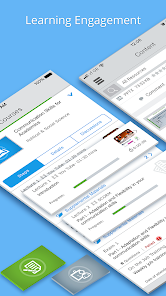
Information
- Category: Education
- Price: free
- Age Rating: Everyone
- Available on: /
- Developer: Schoox, Inc.
- Updated on: Dec 5, 2025
Pros 
-
 Unlock your potential with Schoox Classic!
 - Engaging learning experiences await!
- User-friendly interface for all!
- Track progress with ease and clarity!
- Access a vast library of resources!
Cons 
-
 Limited customization options
 - User interface can be confusing
- Inconsistent performance issues
- Lack of offline access features
- Limited integration capabilities
Get Installation Details  Google Play
  App Store
Google Play App Store User Reviews
(1.15K Reviews) Glissy Dale2026/02/24
it's fine when it works, a good learning resource for job training, but I constantly find parts in lessons that don't work or don't even play or have audio, so it doesn't let you move on (unless you purposefully fail the little activity it gives you sometimes. like the little "click where you need to go" type activities don't work for me on my phone. please make these more mobile-friendly?
- Kevin Northrop2024/05/27
Schoox is used by Cracker Barrel (and other businesses???) as a way to supplement employee training, and for that it's a good thing. It can be a bit confusing to use at times, however, though that could just be the way the Barrel utilizes it, too. Overall I remain neutral on its presentation and functionality. If your employer uses it, you basically "get what you get," so what more can you say about it? On a pass/fail scale, it passes, I suppose...
- Cody2025/08/10
Honest Aspie Review: I was going to put 5 stars but thought about it that there are some minor glitches that could use debugging. However I will rate it 4 stars because it loads quickly even when service sucks, it's a lightweight app (I'm required to have it for my job) biometrics needs a bit of updating as it refuses to recognize me sometimes. Asking for pin login or face verify to login. or just no nothing login as it's a school app and data doesn't need to be as secure as requiring biometrics
- A Google user2019/05/24
app and website, both are full of dead ends where, while doing a lesson, screens white out, bottom-right checkmark buttons never become clickable. Nothing runs smoothly, the system seems dated and is arduous to use. layout and formatting are nice. If Devs would get the basic follow through of the lessons dialed in, it would be a four or five star app. Get it together.
- Yella2024/08/17
Won't open any course for me just keeps looping back to the screen with team member names. Hit start back to screen with team member names. Tried to contact support but it wouldn't send when I hit send on the message box.. please help. I can't get my training done. Not working for my Android or my coworkers IPhone Sent you'll an email through your support link
Review Source: Google Play store public user reviews.
How to use Schoox Classic
How can I contact customer service for the Schoox Classic app?
You can reach customer service by emailing support
How do I activate my Schoox Classic app account?
To activate your account, follow the link sent to your email during registration. Click the link and set your password to complete the activation.
How do I log in to the Schoox Classic app?
To log in, open the app, enter your username and password, and tap the "Log In" button. If you forget your password, use the "Forgot Password?" link.
What is the customer number for Schoox Classic app support?
The customer support number for Schoox is typically provided in the app or on their official website. Please check there for the most accurate information.
What's New
- Bug fixes & improvementsWe always recommend updating to the latest available version to ensure you have the best experience.
Similar Apps













You May Like

Finelo: Master Trading
Finelo Limited
4.5

Speak: Language Learning
Speakeasy Labs
4.7

IXL
IXL Learning
4.3

Stellarium Mobile - Star Map
Noctua Software
4.8

Remind: School Communication
Remind101
4.3

VeinFinder: Anatomy Study
R&D's R&D
3.7

iRead-3 Practice App
WillPfaffy
Nibble: Your Bite of Knowledge
KREMITAL LIMITED
4.4

phyphox
RWTH Aachen University
4.8

Talkpal - AI Language Learning
Talkpal, Inc.
4.3

Nerd AI - Tutor & Math Helper
Deep Flow Apps
4.6

Language Learning - Ling
Ling Learn Languages
4.5